

Getting a crypto card used to mean lengthy applications, multi-day approvals, and confusing onboarding flows. Upay has compressed that into about five minutes from app download to a usable virtual card. The full sequence is download, register, verify your identity, add crypto, and activate the card.
This guide walks through each step in plain language, including the small details that most setup articles skip and that account for the few problems new users actually run into.
الوجبات السريعة الرئيسية
- You need a smartphone, a government-issued ID, an email address, and some crypto to fund a crypto card.
- KYC verification typically completes within minutes, occasionally up to 24 hours if a manual review is needed.
- The virtual card is usable for online purchases and Apple Pay or Google Pay as soon as KYC clears and the wallet is funded.
- Physical card delivery takes 5 to 15 business days depending on region.
- Choosing the right network when depositing crypto (for example, TRC-20 for USDT) is the single most common source of setup mistakes.
ما تحتاجه قبل أن تبدأ
Have these ready before you begin so the setup runs straight through without interruption.
- A smartphone running iOS 13 or later, or any Android phone running Android 8 or later.
- A valid government-issued ID, such as a passport, national ID card, or driver’s licence.
- An active email address you can access right now to confirm verification.
- Some cryptocurrency to load onto the card (BTC, ETH, USDT, USDC, or another supported asset).
- A few minutes of uninterrupted time and a stable internet connection for the KYC photo step.
Step 1: Download the Upay App on iOS or Android

Open the App Store on iPhone or the Google Play Store on Android. Search for ‘Upay’ and look for the official app published by the Upay development team. Download and install it, the app is free. Once installed, open it. You will see a welcome screen with options to sign in or create a new account.
Quick tip: make sure your phone has at least 100 MB of free storage and a stable internet connection before you start.
Step 2: Create Your UPay Account
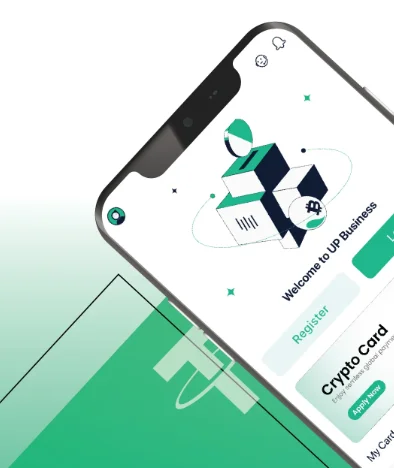
Tap ‘Create Account’ or ‘Sign Up’ on the welcome screen. You will be asked for:
- عنوان البريد الإلكتروني الخاص بك.
- A password (use at least 12 characters with a mix of letters, numbers, and symbols).
- Confirmation of the password.
After submitting, Upay sends a verification email to the address you provided. Open the email and tap the verification link. If you do not see it within two minutes, check your spam or promotions folder. Once verified, you can log in to the app. The account is created but not yet fully active, because you still need to complete identity verification.
الخطوة 3: إكمال التحقق من الهوية (KYC)
KYC stands for Know Your Customer. It is a legal requirement for financial services companies in most countries, designed to prevent fraud and money laundering. Once KYC is approved, full account features become active, including the ability to spend funds and withdraw at ATMs.
Upay’s KYC accepts the following documents:
- جواز سفر.
- National identity card (front and back).
- Driver’s licence (front and back in some regions).
You will also take a selfie or complete a short liveness check so the system can match your face to the ID document. A few practical tips dramatically improve the chance of being approved on the first try:
- Use good lighting, ideally natural light facing you rather than overhead.
- Keep the ID flat on a dark surface and avoid glare on the photo or laminate.
- Make sure all four corners of the document are visible inside the frame.
- Remove glasses for the selfie step if possible.
Most verifications are approved automatically within a few minutes. Manual reviews can take up to 24 hours. You will receive an email when verification is complete.
Step 4: Deposit Crypto Into Your Upay Wallet
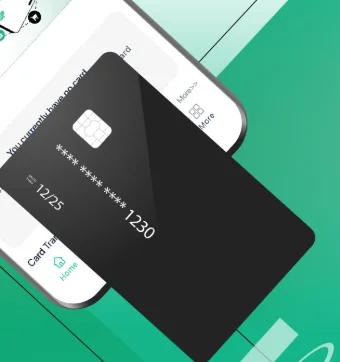
Once KYC is approved, you can fund the wallet. The process is straightforward, but the network selection step is where most new users make mistakes.
- Open the Upay app and go to ‘Wallet’ or ‘Deposit’: حدد العملة المشفرة التي تريد إيداعها.
- Copy your deposit address: Upay generates a unique address for each supported asset. Tap ‘Copy’ to capture the full address to your clipboard.
- Go to your source exchange or wallet: Open your crypto exchange account or external wallet app (Coinbase, Binance, MetaMask, Trust Wallet, and so on).
- Initiate a withdrawal or send: Paste the Upay deposit address into the recipient field. Double-check the first and last four characters of the address before confirming.
- Choose the correct network: For USDT, TRC-20 (Tron) is faster and cheaper than ERC-20 (Ethereum). Always match the network to the address Upay provides for that asset.
- قم بالتأكيد والإرسال: Submit the transaction. Bitcoin typically arrives in 10 to 60 minutes. USDT on TRC-20 usually arrives within seconds. ETH takes 1 to 5 minutes.
Minimum deposit amounts may apply. Check the Upay app for current minimums before sending. Sending below the minimum may result in the funds not being credited.
Step 5: Activate Your Virtual or Physical Card
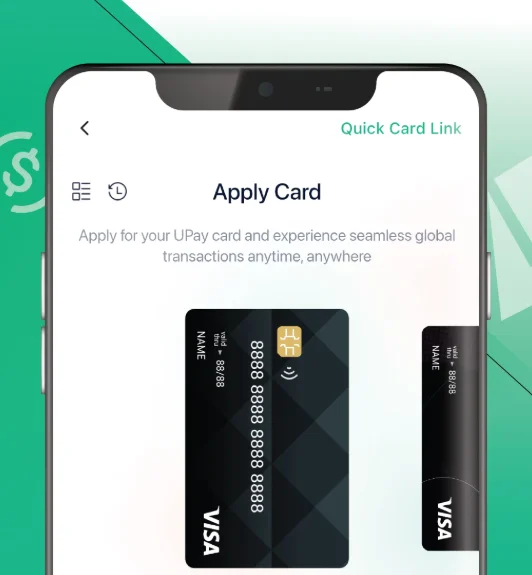
Upay offers two card types, and most users start with the virtual card.
بطاقة افتراضية
Available immediately after your wallet is funded. You can see the card number, expiry date, and CVV in the app, and use it right away for online purchases or add it to Apple Pay or Google Pay.
البطاقة المادية
Request a physical card from the app. Delivery time varies by region, typically 5 to 15 business days. The physical card uses a PIN for in-store transactions. You set the PIN when you activate the card after it arrives.
To activate a physical card, go to the ‘Card’ section of the app and follow the activation prompts. You will usually enter the last four digits of the card number or a code printed on the card sleeve.
How to Add Your Upay Card to Apple Pay or Google Pay
Adding your Upay card to a phone wallet lets you tap to pay at millions of contactless terminals without taking out the physical card.
Apple Pay (iPhone)
Open the Wallet app on your iPhone. Tap the ‘+’ button. Select ‘Debit or Credit Card’ and follow the prompts to add your Upay virtual card. The app will verify the card with a one-time code.
جوجل باي (أندرويد)
Open the Google Pay app or go to Settings on your Android phone. Tap ‘Add card’ and enter your Upay virtual card details. Confirm the verification code to complete the linking.
How to Make Your First Purchase With a Crypto Card
With the card funded and activated, you are ready to spend in three different ways.
- عبر الانترنت: Enter your card number, expiry date, and CVV at checkout, exactly as you would with any other card. Some sites send a one-time password (OTP) to your registered phone number for 3D Secure verification.
- In-store with Apple Pay or Google Pay: Hold your phone near the contactless terminal and authenticate with Face ID, Touch ID, or your PIN.
- In-store with the physical card: Insert or tap the card. Enter your PIN when prompted.
Tips for New Upay Cardholders
- Check your balance before larger purchases. The card will be declined if funds are insufficient.
- Enable push notifications in the Upay app to get instant alerts for every transaction.
- Set a daily spending limit in the app to protect yourself if your card details are ever compromised.
- Use USDT or USDC for everyday spending to avoid price volatility between top-up and purchase.
- Keep a record of your deposit transactions for tax purposes, especially if you deposit BTC or ETH.
- Use the card freeze feature immediately if you lose your phone or suspect unauthorised access.
- Top up in advance before international travel so you are not scrambling to load funds abroad.
- Check the fee schedule in the app before your first ATM withdrawal to avoid surprises.
Troubleshooting Common Upay Setup Issues
Most setup problems are caused by a small handful of issues. The table below maps each to its fix.
| القضية | سبب محتمل | الحلول |
|---|---|---|
| Card declined at checkout | Insufficient balance | Check the balance in the app and top up before spending |
| KYC verification rejected | Blurry or glare-affected photo | Retake the photo in better lighting with the document flat |
| لم يتم استلام بريد إلكتروني للتحقق | Email went to spam | Check spam or promotions folder, or request a new verification email |
| App not loading or crashing | Connectivity or outdated app | Switch to stable WiFi and update the app from the store |
| ATM withdrawal failed | Exceeded daily ATM limit | Check your daily ATM limit in the app settings |
| Crypto deposit not arriving | تم اختيار شبكة خاطئة | Verify you used the correct network (e.g. TRC-20 for USDT) and contact support |
| Physical card not activating | Wrong activation code | Check the code on the card sleeve and re-enter carefully |
الأسئلة الشائعة (FAQs)
How long does KYC verification take on Upay?
Most verifications complete automatically within a few minutes. If your documents need a manual review, it can take up to 24 hours. You will receive an email once your account is verified.
Can I use the virtual card immediately after signing up?
You can use the virtual card as soon as KYC is approved and you have funded the wallet. There is no additional waiting period for the virtual card itself.
What is the minimum amount I can deposit to Upay?
Minimums vary by cryptocurrency. Check the deposit screen in the Upay app for the current minimum before sending funds. Sending below the minimum may result in the deposit not being credited.
Is my crypto safe while it is in the Upay wallet?
Upay uses industry-standard security measures, including encryption and two-factor authentication. As with any custodial wallet, you are trusting the provider to secure your assets. Use a strong password and enable 2FA on your account to reduce risk.
How long does the Upay physical card take to arrive?
Delivery typically takes 5 to 15 business days, depending on your region. You can keep using the virtual card for online and Apple Pay or Google Pay purchases while you wait for the physical card to arrive.